
Per-Integration Guide
Where to get API keys for each supported integration.
Each integration requires specific credentials. Here's where to find them.
| Integration | Auth Type | Where to get it | Notes |
|---|---|---|---|
| ChatGPT | Device login | Start from Solaris AI Connections or the Copilot/AI-node prompt | No API key to paste. Uses your own ChatGPT account. Full guide: ChatGPT Integration. |
| Grok | Device login (or xAI API key) | Start from Solaris AI Connections or the Copilot/AI-node prompt | No API key to paste. Uses your own Grok account. An xAI key from console.x.ai is the fallback if xAI's allowlist refuses API access. Full guide: Grok Integration. |
| OpenRouter | API key | openrouter.ai/keys | Create account, generate key. Supports 300+ models. |
| Venice AI | API key | venice.ai/settings/api | Add USD balance to your Venice account before generating, see Venice AI below. Private inference; curated open-source catalog (Llama, Qwen, DeepSeek, etc.). |
| Alchemy | API key (+ optional Auth Token) | dashboard.alchemy.com | Solana only. Prices, RPC, and Token Balances work on the free plan; the Assets / NFT ops need the gated DAS API. The Auth Token is only for the Wallet Activity trigger. See Alchemy below. |
| Birdeye | API key | birdeye.so | Developer portal, free tier available |
| Helius | API key | helius.dev | Create project, copy API key |
| CoinGecko | API key | coingecko.com/api | Free Demo plan or paid Pro plan |
| Dune | API key | dune.com/settings/api | Requires Plus plan for API access |
| DefiTheOdds | API key | defitheodds.xyz | Free tier available |
| GMGN | API key | gmgn.ai/ai | Upload an Ed25519 public key, then paste the returned API key. See GMGN below. |
| CabalSpy | API key | apidashboard.cabalspy.xyz | Free registration, no card. See CabalSpy below. |
| Telegram | Bot token | @BotFather on Telegram | Send /newbot, copy the token |
| Discord | Webhook URL | Server Settings → Integrations → Webhooks | Copy the webhook URL |
ChatGPT
ChatGPT uses a device-login flow instead of an API key. The session is encrypted on the server and used only for AI-node and Copilot runs you start. Usage counts against your own ChatGPT account. Image generation is not available through ChatGPT in Solaris AI; use OpenRouter for AI image output.
For connect steps, reconnecting, where to use it, limits, and troubleshooting, see the dedicated ChatGPT Integration guide.
Grok
Grok uses the same kind of device-login flow as ChatGPT, with no one-time setting to enable first: sign in on xAI's site with a one-time code and your Grok account. The session is encrypted on the server and used only for AI-node and Copilot runs you start. Usage counts against your own Grok account. Image generation is not available through Grok in Solaris AI; use OpenRouter for AI image output.
xAI allowlists its API surface, so a valid Grok login can still be refused API access with a 403. When that happens, paste an xAI API key from console.x.ai instead: the connect dialog offers Have an xAI API key? Use it instead, and the key is validated before it is saved.
For connect steps, the model lineup, reasoning behavior, limits, and troubleshooting, see the dedicated Grok Integration guide.
Venice AI
Venice requires a funded Venice account before keys become live. A brand-new key generated on a $0 balance is created without any error, but it stays inactive until you add USD balance on Venice's side. AI nodes using such a key will fail at runtime, even though the key looks valid in Connections.
Note: This funding goes to Venice, not to Solaris AI. AI nodes are BYOK (only Copilot's free tier runs on a Solaris AI key); you pay Venice directly for the inference you run.
- Go to venice.ai/settings/api.
- Add any USD balance to your Venice account. Once your USD balance is greater than $0, the Venice dashboard flips to an API ACTIVE badge in the Overview section.
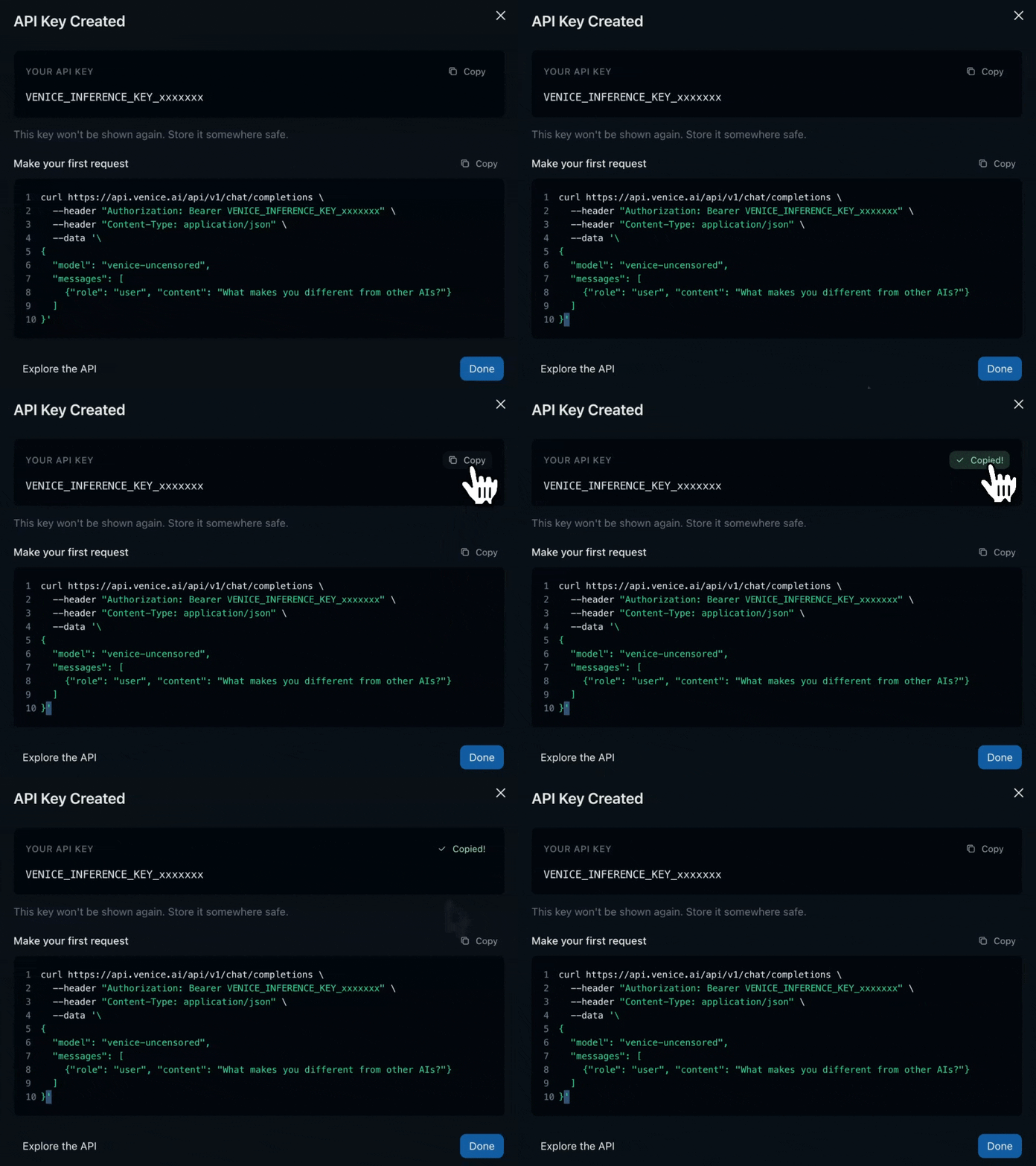
- Click Generate Key (in the Quick Start panel) or New API Key (top right) to create your key.
- Copy the key and paste it into a new Venice AI credential under Connections in Solaris AI.
If you generated a key before adding USD balance to your Venice account, you do not need to regenerate it. Just top up the Venice account; the same key activates on the next call.
Alchemy
An Alchemy credential can hold two separate tokens, and you only need the one(s) for what you are building. Both are entered on a single Alchemy credential in Connections.
- API key (required for the Alchemy node): create a Solana app at dashboard.alchemy.com and copy its key. This powers every Alchemy data operation (RPC, prices, balances, NFTs, and DAS). When you add a key, Solaris AI validates it against the live Solana RPC, so a mistyped key is rejected before it is saved.
- Auth Token (optional, only for the Wallet Activity trigger): an account-level token, separate from any app's API key. Get it in the Alchemy dashboard under Webhooks: the Auth token is in the page header with a Copy button. The page redirects to the create flow until your account has at least one webhook, so create one first; the token is account-level and the same for every webhook. Enter it in the credential's advanced options. With it, Solaris AI creates and manages the Address Activity webhook for your watched wallets automatically.
A credential needs at least one of the two. A credential that has only an Auth Token is trigger-only: its token is used to auto-provision Wallet Activity webhooks, but it is disabled in the Alchemy data node's credential picker, because data reads require an API key.
Most Alchemy operations work on the free plan with no extra setup: Token Balances runs on Alchemy's Portfolio Data API, and Prices and the raw RPC operations run on the Node API. The Assets operations (NFT and digital-asset reads) use the Solana Digital Asset Standard (DAS) API, which is a gated Beta: it is not one of the self-serve services in the Alchemy dashboard, so there is no toggle to turn it on, and access is request-only. If a DAS operation fails with "Unable to complete request at this time" (error -32001), DAS is not available on your account; to request it, email Alchemy Data Services at data-services-product@alchemy.com. You do not need DAS for wallet balances: use Token Balances (Portfolio API) or Token Accounts by Owner (raw RPC).
Jupiter
A Jupiter API key is required for all operations except SOL transfer. Add a Jupiter credential in the Connections page. Transfer uses your Privy wallet directly and does not need an API key.
GMGN
GMGN credentials are API keys issued after you upload an Ed25519 public key to GMGN. Solaris AI can generate the keypair locally in your browser to make this easier.
- Open Connections, expand GMGN, and click Add key.
- Use Generate keypair to create the Ed25519 keypair in your browser, or bring your own public key.
- Open gmgn.ai/ai?chain=sol&tab=api_management, create an API key, and paste the public key when GMGN asks for it.
- Copy the API key GMGN returns and paste it into Solaris AI.
Solaris AI does not store the generated private key. The current GMGN node is read-only, so the private key is not needed after the API key is created.
CabalSpy
CabalSpy issues plain API keys from its dashboard — no card and no key-upload ceremony.
- Register at apidashboard.cabalspy.xyz/register.
- Copy the API key shown in the dashboard.
- Open Connections, expand CabalSpy, click Add key, and paste it.
The free plan includes 10,000 credits per month (10 credits per request, so 1,000 requests) at up to 5 requests per second. A 403 from the CabalSpy node means either the key is invalid or the month's credits are exhausted; the dashboard is the only place that distinguishes the two.
MetaMask Agent Wallet
MetaMask connects through its own sign-in page rather than an API key, and everything happens in the browser. There is nothing to install and no terminal involved.
- Open Connections, expand MetaMask Agent Wallet, and click Continue with MetaMask.
- Sign in on developer.metamask.io/agentic/login with Google, email, or the MetaMask app. This works on a phone.
- Paste the token MetaMask shows you back into the connect dialog.
Your wallet's private keys never reach Solaris AI. They stay in MetaMask's secure enclave, and every signing request is evaluated against your wallet's own policy first. In Guard mode that means you approve each action on your bound device, and the MetaMask node returns a polling id instead of a transaction hash until you do. In Beast mode actions are signed autonomously within your policy.
The session is encrypted on the server and refreshed automatically. MetaMask rotates the refresh token on every refresh, which means one login belongs to one place: connecting here does not disturb a separate MetaMask session you may be using elsewhere, and reconnecting in Solaris AI replaces the stored session rather than adding a second one. If a session does expire, the Connections page shows the credential as broken with a Reconnect action that re-signs into the same credential, so every node referencing it keeps working.
Pump.fun
Pump.fun read operations (getCoin, getTopRunners, etc.) need no credential. On-chain operations - buy, sell, createToken (token launch), claimFees, and claimCashback - use your embedded Privy wallet for transaction signing. createToken additionally generates a one-shot mint keypair in-memory to co-sign the launch transaction (never persisted).
StonkFun
StonkFun's public API is keyless, so no StonkFun credential exists: every read operation runs with nothing connected. The two operations that move funds, launchToken and claimFees, sign with your embedded Privy wallet. StonkFun builds the transaction (a launch-fee payment, or a creator-fee claim) around your wallet as fee payer, Solaris AI checks that fee payer before signing, signs through Privy, and hands the signed bytes back to StonkFun, which broadcasts them. Nothing is signed while the node's Dry run switch is on. See the StonkFun node page for the per-operation behavior.
Huma Finance
Huma 2.0 is keyless, so no Huma credential exists: getApy, getTokenPrice, and getBalances (with an owner address) run with nothing connected. The four operations that move funds, deposit, requestWithdrawal, instantWithdraw, and claimProcessed, sign with your embedded Privy wallet. Solaris AI builds the transaction with Huma's official SDK, decodes it and checks the amount, lockup, mode, and signer before signing, signs through Privy, and broadcasts it. Nothing is signed while the node's Dry run switch is on; the dry run simulates the transaction instead. See the Huma Finance node page for the per-operation behavior.
Phoenix Flight
Phoenix Flight is the Ellipsis Labs perps DEX where Solaris AI is a registered builder. The platform is in private beta, so every fresh Privy wallet must be whitelisted once with an invite code before any Live signed op (placing/cancelling orders or moving collateral). Paper-mode Phoenix signed ops do not require activation because they never sign or broadcast.
Phoenix activation is NOT a credential. Unlike API-key integrations, invite codes are single-use per wallet and don't belong in a persistent credential row. Activation is handled inline in the Phoenix node config dialog: open any Phoenix node, pick a signed op, flip it to Live, and an "Activate Phoenix Flight access" panel appears at the bottom. Enter your code, pick the code type (access or referral), click Activate. Once activated, the panel disappears forever across every Phoenix node in every workflow for that wallet, and no invite data is ever stored on the node, in workflow exports, or in a credential.
Read-only Phoenix ops and paper-mode signed ops don't require activation. See the Phoenix node page for the full per-op behavior.
Request a code at x.com/PhoenixTrade.
CoinGecko plan types
CoinGecko credentials include a planType field:
- demo - free tier, limited endpoints
- analyst/lite/pro - paid tiers with more data
Set this in the credential config so the node knows which endpoints are available.
Next steps
- Node Reference - see what each node does with these credentials